










This page explains how to access an existing Champion Bet account and create one if you are new to the platform. It covers the information needed for sign-in, the registration form, password recovery, and practical checks for common access problems. Follow the steps carefully, especially when entering contact details, so that you can receive verification or recovery messages when needed.
The guidance is intended for users in the Republic of the Congo. Use a private device where possible, and keep your account credentials separate from information you share with other people.
How to Log In to Champion Bet
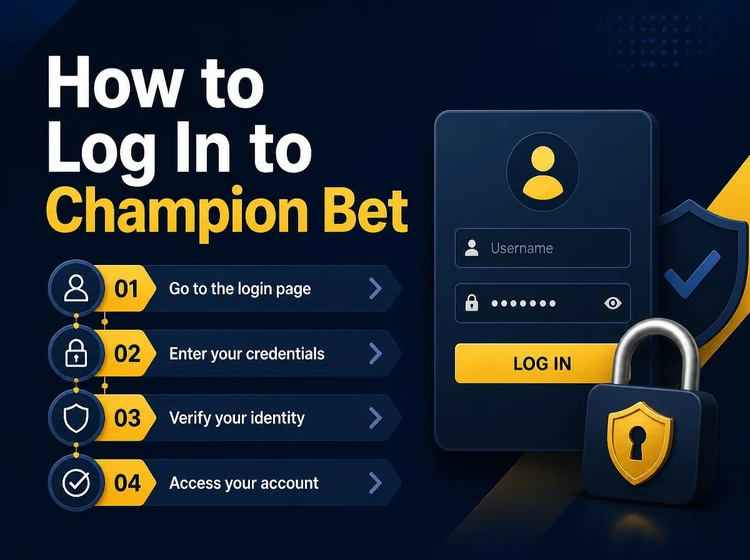
To sign in, enter the username or email address connected to your account, followed by your password. The login form is available from the homepage. Check each character before submitting: a misplaced space or an incorrect email address is enough to stop access.
Use a secure connection when entering personal information, and avoid public Wi-Fi where possible. On a shared phone or computer, do not save passwords in the browser and log out when you finish. Never share a one-time code or password with another person.
- Open the official website.
- Select the login button.
- Enter your username or email address.
- Enter your password carefully.
- Confirm the form to access your account.
Champion Bet Registration
Registration creates the account used to manage bets, payments, and account settings. The form may ask for your full name, date of birth, phone number, email address, and other details needed to identify the account holder. Only adults aged 18+ should create an account.
Enter accurate information that you can verify later. An active phone number and email address are particularly useful for notices and password recovery. Details that do not match your documents can complicate verification or requests to update account information.
How to Register with Champion Bet
Complete the form slowly and review it before submission. The exact fields and verification steps shown on the site may vary.
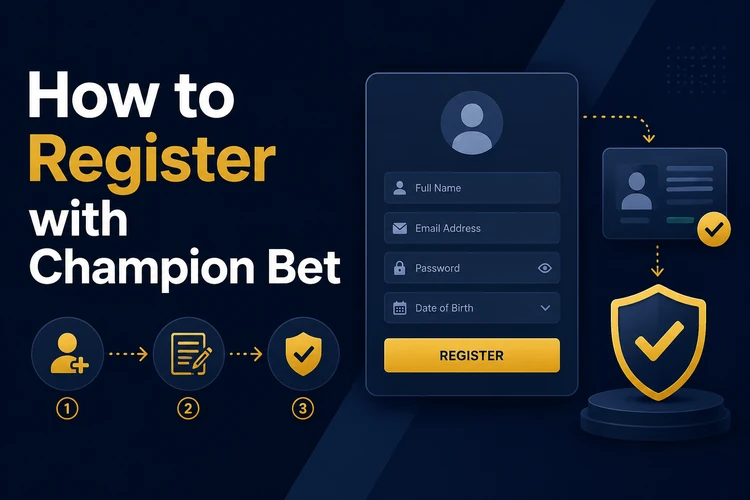
- Step 1: Open the official website and find the registration button.
- Step 2: Open the registration form and read any instructions displayed there.
- Step 3: Enter your personal and contact details exactly as requested.
- Step 4: Create a unique password using a mix of letters, numbers, and symbols.
- Step 5: Check your entries, including the spelling of your email address and phone number.
- Step 6: Submit the form and complete verification if the site requests it.
- Step 7: Sign in with the credentials you created once access is available.
Keep a record of the email address or username used for the account. If a verification message does not arrive, first check spam or junk folders and confirm that the number and address entered in the form are correct.
Tips for a Successful Registration
Check your details twice before submitting. Make sure the email address is active and the phone number includes the correct country code. Small typing errors can prevent important messages from reaching you.
A strong password should not use obvious details such as your name, birthday, or a repeated number pattern. Do not reuse a password from email or banking services. A password manager can help you store a unique password without writing it where others can see it.
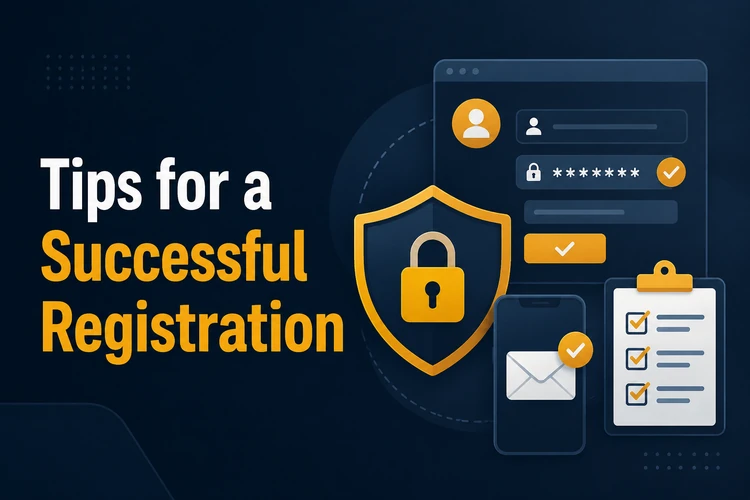
If identification is requested, prepare a clear, current copy of the relevant document. Avoid sending documents through unverified channels. Use the instructions displayed in your account or ask support which secure method is available.
Login Issues and Solutions
If sign-in fails, check the username or email address, then re-enter the password. Confirm that Caps Lock is off because passwords are case-sensitive. Clearing outdated browser cache and cookies, or trying another current browser, can also resolve a loading error.
For a forgotten password, use the recovery option in the login form and follow the on-screen instructions. Use only the reset message sent to your registered contact method, and create a new password that is different from the previous one. Do not request repeated reset links unless the earlier message has expired.
Several unsuccessful attempts may temporarily restrict access as a security measure. Wait before trying again rather than guessing repeatedly. If the problem remains, contact customer support and provide only the information requested through official channels.
Verification problems may result from incomplete details or unclear documents. Review the information in your profile and any instructions received. Do not create a second account to bypass an issue; resolving the original account is the safer approach.
FAQ
Open the official website, select the registration button, and complete the form with accurate personal details. Create a unique password, submit the form, and follow any verification instructions shown.
You can sign in through a mobile browser using the same credentials as on a computer. If an Android app is offered, check the <a href='/apk'>app download page</a> for the available installation instructions.
The form may request your full name, date of birth, phone number, email address, and a password. Additional identification may be requested when verification is needed.
Select the password recovery option in the login form, enter the registered contact detail requested, and follow the reset instructions sent to you. Set a new password that you do not use elsewhere.
Creating an account does not normally require a registration payment. Review the payment information shown on the platform before making a deposit, as methods can have their own terms.
Some contact details may be editable in account settings. Changes to identity details can require verification, so use accurate information when first completing the form.